Import a project plan into a gantt chart
By Prairie Loom editorial team Verified against the current GanttProject release on GitHub Releases
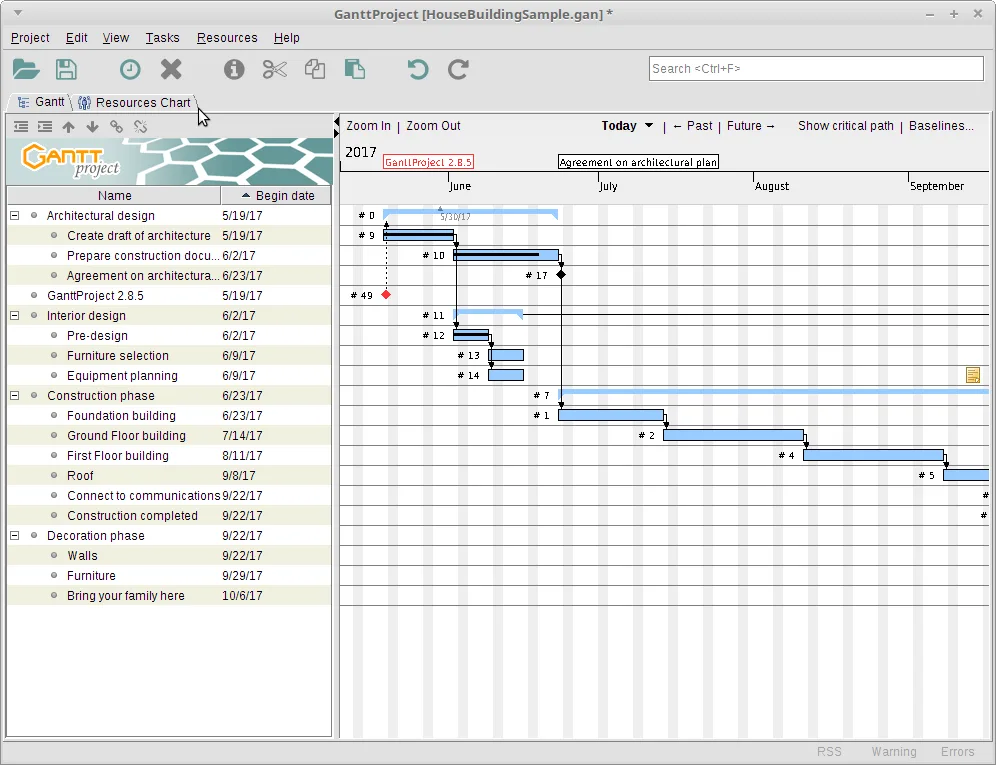
Prove local first
Before you import anything, create a tiny native project and save a .gan file. Import tools are harder to debug when you have never saved a local gantt chart successfully.
Upstream README lists interoperability with MS Project, Excel, and other spreadsheet apps. Treat that as the capability map; exact menu labels can vary by release, so confirm in your build under File import entry points.
Keep a copy of the original file untouched so a bad import does not destroy the only plan you have.
From Microsoft Project
Many teams leave Microsoft Project with an .mpp or exported intermediate format. GanttProject’s MS Project importer modules exist in the repository for that job. Import into a new file first, then inspect tasks, dates, and links on the gantt chart.
Expect some constructs to map imperfectly: custom fields, VBA, and enterprise portfolio objects may not survive. Fix critical path links manually after import.
Comparison context lives on /vs-microsoft-project.
From spreadsheets
Spreadsheet schedules often store task name, start, finish, and owner columns. Export CSV when needed and follow the importer prompts in your GanttProject build. Then rebuild dependencies on the gantt chart because sheets rarely encode them well.
Do not trust conditional-formatting bars in Excel as a substitute for real predecessors after migration.
Normalize date formats before import to avoid shifted timelines.
After import quality checks
Walk the top ten tasks. Check milestones. Check that summary tasks still roll up. Zoom the gantt chart to the project span and look for bars that landed in 1970 or far-future years.
Reassign resources if names arrived as plain text without calendars.
Export a PDF and have a teammate read it without the app open.
Collaboration imports
WebDAV and GanttProject Cloud are optional paths for shared editing. They are not required to import a file once and continue offline.
If your company mandates a SaaS gantt chart, import may be a one-way bridge rather than a permanent home—decide that before you invest in cleanup.
Keep GPL desktop files under your backup regime either way.
When to stop importing
If you spend longer cleaning an import than rebuilding twenty tasks, rebuild. A clean gantt chart with honest links beats a perfect field mapping with broken dates.
Document what did not survive so the next migration is faster.
Return to /gantt-chart-first-run if the UI still feels unfamiliar.
Keep the job name clear
Keep the write phrase clear when you talk about the job: people typed gantt chart because they need bars on a timeline, not a slide deck sketch. GanttProject is the GPL-3.0 program this guide installs, and the official binaries live on GitHub Releases under ganttproject-* tags. Prefer ganttproject-*.msi on Windows, match silicon or intel DMG files on macOS, or install the Homebrew cask when that is your standard Mac channel. Linux users on Debian-family desktops should take the architecture-independent deb from the same tag and install it with their usual package tool.
One careful install
A careful install habit beats a clever workaround. Download once from bardsoftware/ganttproject, verify the file name, run the installer, and prove a tiny schedule before you import a giant plan. Save a .gan file in a folder you back up. Export a PDF or PNG so stakeholders can read the gantt chart without installing the desktop app. When you update, return to the same Releases page rather than a random mirror that wraps the setup in unrelated offers.
Dependencies first
Dependencies are what make a gantt chart honest. If you only paint bars without links, a slip in one task never moves the work that should wait. Add finish-to-start links on day one, mark milestones for fixed events, and set a baseline before a major reshuffle so you can compare plan versus actual. Resource load charts help after the timeline itself is trustworthy. Cost fields help when money tracks with time. None of those extras replace clear task names and realistic durations.
Release metadata
The install panel resolves official assets through the latest fetched release metadata. Versions in the footer and stamp come from that data at build time, so you should not pin a version number in your internal prose if you can say “current release on GitHub Releases” instead. Winget was not verified for GanttProject on the research day, so Windows stays on the MSI path. Homebrew’s ganttproject cask was verified via formulae.brew.sh for macOS.
When something fails
If something fails, stop and re-check the download-safe steps before you try a second website. SmartScreen and Gatekeeper prompts are normal for first launches of internet-downloaded software. Continue only when the publisher and file name match what you expect from the bardsoftware release. Share the Releases URL with teammates instead of emailing a private copy of the MSI that will go stale.
Ongoing work habits
For ongoing work, treat the schedule like any other engineering tool: one update door, one project folder convention, one person who checks Releases after a major planning cycle. Optional WebDAV or GanttProject Cloud collaboration can wait until offline scheduling is boringly reliable. Importers for MS Project and spreadsheets are power tools—prove a native file first, then migrate, then clean links that did not survive.