Gantt chart desktop vs Microsoft Project
By Prairie Loom editorial team Verified against the current GanttProject release on GitHub Releases
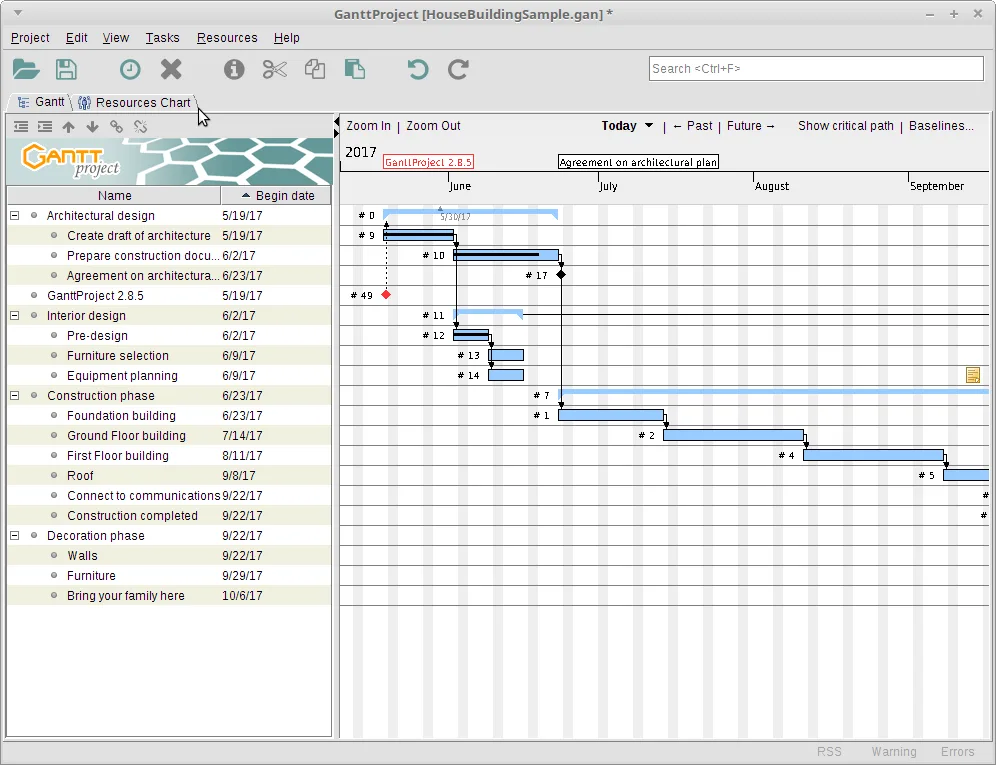
Different jobs
Microsoft Project is a commercial project-management suite with deep enterprise features. GanttProject is a GPL-3.0 desktop app focused on a clear gantt chart, resources, and exports. This page does not put Microsoft Project in the site H1 elsewhere; here the comparison is explicit.
Choose Microsoft Project when your organization already bought seats, templates, and reporting pipelines around it. Choose GanttProject when you need a free local gantt chart with open-source licensing.
Neither tool replaces clear scope. Both punish fantasy durations.
Cost and licensing
GanttProject desktop is free under GPL-3.0. Microsoft Project is commercial with subscription or perpetual SKUs depending on how you buy. Total cost of ownership includes training and the cost of broken imports, not only the sticker price.
If you only need a timeline PDF monthly, paying for an enterprise suite may be wasteful. If you run hundreds of linked projects with enterprise fields, the free gantt chart may be too small.
Optional GanttProject Cloud is separate from the free desktop license.
Features that matter day to day
Both can show task bars, dependencies, and resources at a high level. Microsoft Project typically wins on enterprise portfolio views and organizational standards. GanttProject wins on zero license cost and a straightforward desktop gantt chart for individuals and small teams.
Interop exists so you can often move plans in one direction or another, with cleanup. Read /import-project-plan before you promise a lossless migration.
Exports from GanttProject to PDF, HTML, and PNG cover many stakeholder reviews.
Platforms
GanttProject ships Windows, macOS, and Linux installers from GitHub Releases. Microsoft Project’s classic desktop footprint is Windows-centric, with web plans in the Microsoft ecosystem.
If your designers live on Macs and your schedulers live on Linux build machines, a cross-platform gantt chart matters.
Browser-only PCs still need a different product class.
When to stay put
If your PMO’s audit trail, resource pool, and status reports are already automated around Microsoft Project, switching for ideology alone creates risk. Stay, and use GanttProject only for sandboxes if at all.
If you are a student or a five-person shop, starting on a free gantt chart avoids years of unused seats.
Re-evaluate yearly as team size changes.
Practical trial
Install GanttProject from the MSI, rebuild one active plan, and export a PDF. Compare side by side with your current Microsoft Project printout. Decide with evidence, not with banner ads.
Keep the old file authoritative until the new gantt chart survives two planning cycles.
Document the decision for the next person who asks.
Keep the job name clear
Keep the write phrase clear when you talk about the job: people typed gantt chart because they need bars on a timeline, not a slide deck sketch. GanttProject is the GPL-3.0 program this guide installs, and the official binaries live on GitHub Releases under ganttproject-* tags. Prefer ganttproject-*.msi on Windows, match silicon or intel DMG files on macOS, or install the Homebrew cask when that is your standard Mac channel. Linux users on Debian-family desktops should take the architecture-independent deb from the same tag and install it with their usual package tool.
One careful install
A careful install habit beats a clever workaround. Download once from bardsoftware/ganttproject, verify the file name, run the installer, and prove a tiny schedule before you import a giant plan. Save a .gan file in a folder you back up. Export a PDF or PNG so stakeholders can read the gantt chart without installing the desktop app. When you update, return to the same Releases page rather than a random mirror that wraps the setup in unrelated offers.
Dependencies first
Dependencies are what make a gantt chart honest. If you only paint bars without links, a slip in one task never moves the work that should wait. Add finish-to-start links on day one, mark milestones for fixed events, and set a baseline before a major reshuffle so you can compare plan versus actual. Resource load charts help after the timeline itself is trustworthy. Cost fields help when money tracks with time. None of those extras replace clear task names and realistic durations.
Release metadata
The install panel resolves official assets through the latest fetched release metadata. Versions in the footer and stamp come from that data at build time, so you should not pin a version number in your internal prose if you can say “current release on GitHub Releases” instead. Winget was not verified for GanttProject on the research day, so Windows stays on the MSI path. Homebrew’s ganttproject cask was verified via formulae.brew.sh for macOS.
When something fails
If something fails, stop and re-check the download-safe steps before you try a second website. SmartScreen and Gatekeeper prompts are normal for first launches of internet-downloaded software. Continue only when the publisher and file name match what you expect from the bardsoftware release. Share the Releases URL with teammates instead of emailing a private copy of the MSI that will go stale.
Ongoing work habits
For ongoing work, treat the schedule like any other engineering tool: one update door, one project folder convention, one person who checks Releases after a major planning cycle. Optional WebDAV or GanttProject Cloud collaboration can wait until offline scheduling is boringly reliable. Importers for MS Project and spreadsheets are power tools—prove a native file first, then migrate, then clean links that did not survive.