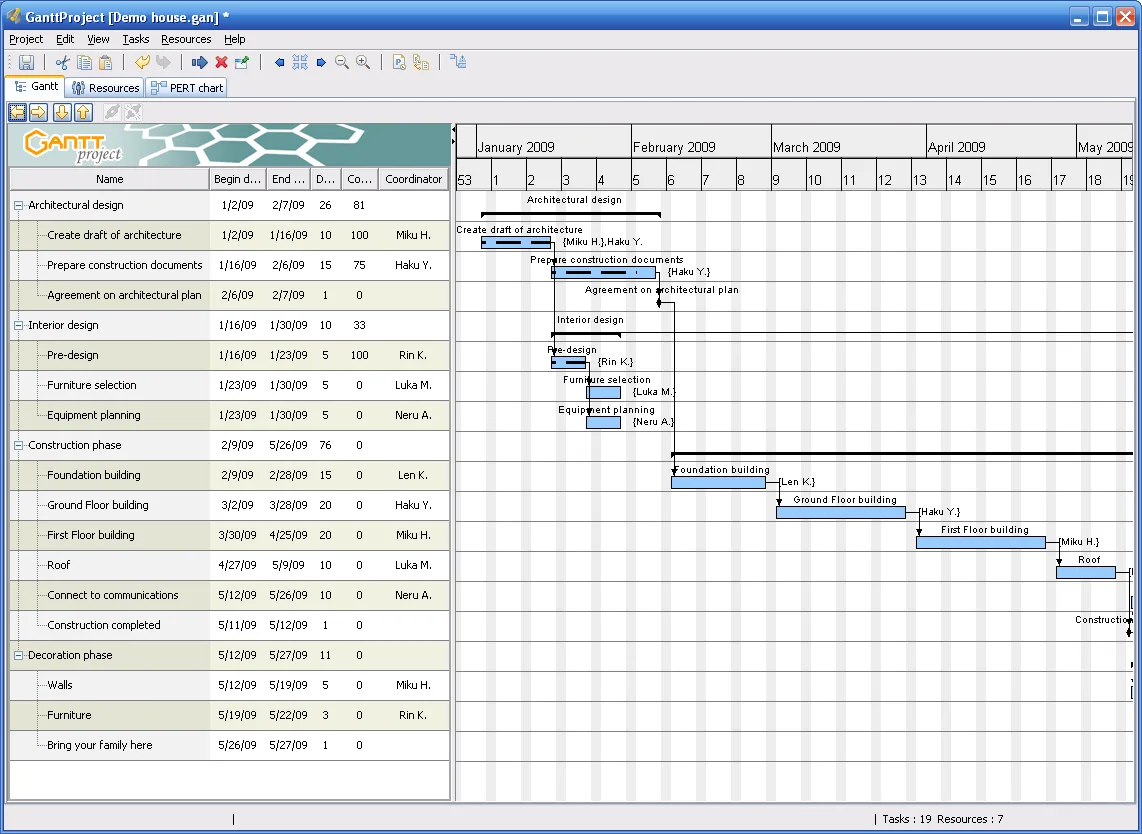
On Windows 10 or 11, open bardsoftware/ganttproject releases and select the newest tag that starts with ganttproject-.
Download ganttproject-*.msi. Prefer the MSI over the .exe on the same tag. No winget package was verified for this guide.
Run the MSI, finish UAC prompts, and launch GanttProject from the Start menu. Create three tasks, link two of them on the gantt chart, and save a .gan file outside Downloads.
If SmartScreen appears, confirm the file name matches the GitHub asset before continuing. Do not switch to a random mirror to bypass a warning.
Verify the install
Export a PDF or PNG once. Pin the app if you rebuild schedules weekly. Document that this PC used the MSI so updates stay consistent.
Next steps
Continue with first run, first hour, and safety.
Installer sources
Keep installer sources honest: GitHub Releases for bardsoftware/ganttproject, Homebrew cask on macOS when you trust that formula, and the deb on Debian-family Linux. Prefer ganttproject-*.msi on Windows. Prove a tiny linked schedule before you import a large plan into the gantt chart. Export PDF or PNG for stakeholders who will never open the desktop app. Prefer wording like current release in runbooks; the site stamp already shows the live GitHub tag from release metadata.
Links and milestones
Dependencies make a gantt chart honest. Milestones mark fixed events. Baselines help after reshuffles. Resource views wait until the timeline itself is trustworthy. Skip Softonic-style wrappers forever. When SmartScreen or Gatekeeper appears, verify the official file name before you continue.
Optional services
Optional WebDAV or GanttProject Cloud collaboration can wait until offline scheduling is reliable. Importers for MS Project and spreadsheets are power tools—prove a native file first, then migrate, then clean links that did not survive. Keep one update door for every machine that runs this gantt chart tool.
Keep the install boring
A durable schedule habit is boring on purpose. One official installer, one project folder, one export after each planning meeting, and one person who checks GitHub Releases when dates get stressful. That rhythm beats collecting three different builds from three mirrors and then wondering which binary opened the file.
Share the official door
When you teach someone else, send them the Releases URL and the asset pattern rather than a private copy of the MSI. Private copies go stale. Official tags do not. Prefer ganttproject-*.msi on Windows, match silicon or intel DMG files on macOS, and use the deb on Debian-family Linux. Homebrew’s ganttproject cask remains the verified Mac package-manager path for this guide.
Write honest tasks
Task names should read like deliverables. Durations should survive contact with reality. Dependencies should exist on day one so a slip moves the work that should wait. Milestones mark fixed events executives actually care about. Baselines help after reshuffles. Resource load charts help after the timeline itself is trustworthy. None of those extras replace clear scope.
Import only after a native file works
Import tools are powerful and messy. Prove a native .gan schedule before you import Microsoft Project or spreadsheet plans. Keep the source file authoritative until cleanup finishes. Rebuild links that arrived broken. Custom enterprise fields may not survive, and that is normal. A clean gantt chart with honest dates beats a perfect field mapping with wrong years.
Stay on official downloads
Security habits stay simple. Download from bardsoftware/ganttproject releases or Homebrew. Verify the file name. Treat SmartScreen and Gatekeeper as expected friction, not as a reason to try a sketchy mirror. Read upstream security notes for advisories. This install guide does not host binaries and does not invent winget ids.
Collaboration can wait
If collaboration matters later, evaluate WebDAV or GanttProject Cloud only after offline scheduling is reliable. Many teams never need those services. A PDF export of the gantt chart is enough for weekly stakeholder reviews. HTML and PNG exports cover browsers and slides. Re-export after baseline changes so nobody argues from a stale picture.
Document the update door
Finally, document the update door on each machine: MSI, EXE, DMG, Homebrew, or deb. Mixed doors across a team create confusing support threads. When something breaks after a reimage, check the asset name first, then the project path, then preferences. Most “broken gantt chart” reports are the wrong binary or a missing file, not a mysterious preference deep in a menu.
Store projects like source
Teams that replan every week should store .gan files beside related specs, not in a temporary Downloads folder. Treat the project folder like source code: back it up, name it clearly, and avoid silent copies on USB drives that diverge. When a contractor joins, give them the export and the source path policy so the gantt chart remains the shared timeline of record.
Critical path over cosmetics
Color themes and zoom levels are personal. Critical path honesty is not. If two tasks must never overlap, encode that with links and constraints your build supports, then re-check after every import. A desktop gantt chart earns trust when dates move for the right reasons and stay still for the wrong ones.
Frequently asked questions
Is GanttProject free?
Yes. The GanttProject desktop app is free under GPL-3.0, and GitHub Releases installers for a local gantt chart have no paywall on the MSI, DMG, or deb assets this guide maps. Optional GanttProject Cloud is a separate service if you choose collaboration later.
Where do I download?
Download from GitHub Releases for bardsoftware/ganttproject, or use brew install --cask ganttproject on macOS after you trust that formula. Prefer ganttproject-*.msi on Windows, and skip Softonic-style wrappers that rename the setup.
Does it work offline?
Yes. After you install from GitHub Releases or Homebrew, .gan project files and timeline edits work offline on your computer. Collaboration features stay optional and are not required for everyday gantt chart scheduling.